Associated tools
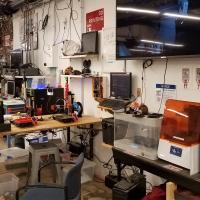
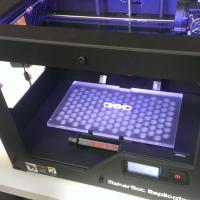
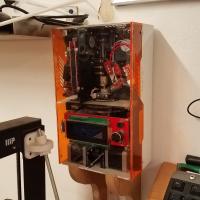

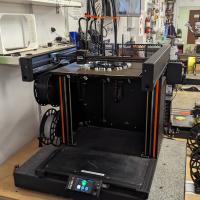


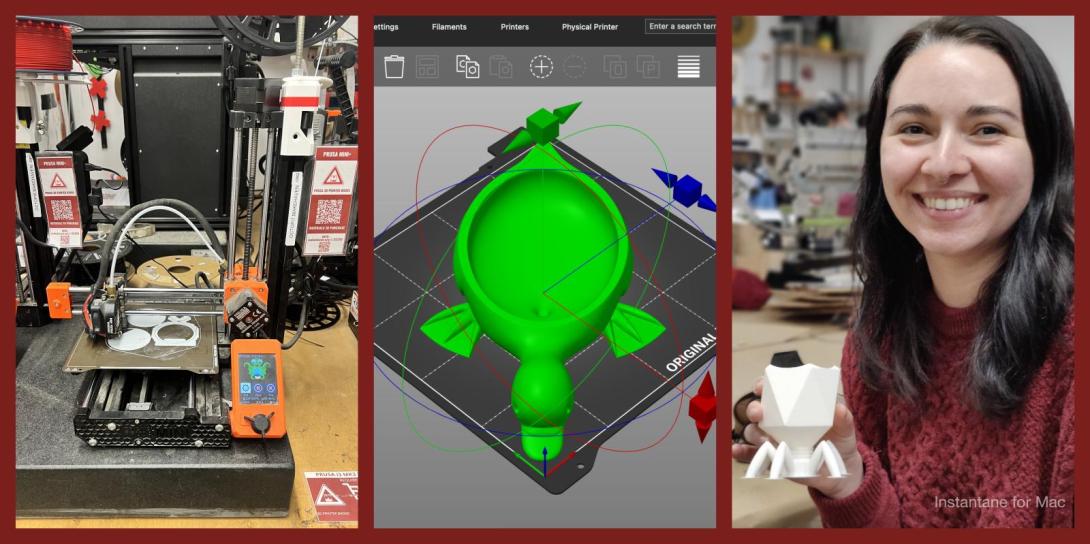
Prusa 3D Printers Badge
Completing this badge allows you to use the Prusa 3D printers. Additional training is required for use of the Markforged and Form Labs 3D printers.
Badge Checkout Requirement
In person checkout required
Badge Checklist
Complete these items to earn the badge.
- 3D Printer (Generic FDM)
- Video watched, quiz taken, any questions?
- Identify and describe control axes, changing filament, and cleaning print surface
- Cleaning the bed (for the first print of the day)
- Putty knife to scrape away chunks
- Lightly sand with sandpaper (grit #)
- Paper towel with isopropyl
- Changing filament
- Pre-heat machine (215)
- Cut filament near spool (at angle)
- Remove old spool - keep slight tension on filament!
- Filament end should be secured on spool itself, inserted into the printer, or held in your hand - loose filament WILL tangle!
- Remove old filament from extruder,
- Move tension spring lever on top and pull filament from extruder motor
- Adding new filament (only PLA)
- Select desired color from available filaments
- If a new roll is opened, write down the color on the To Purchase Clipboard
- Feed new filament through extruder/tube until desired color is extruded
- On Minis, tension lever must be depressed
- Printing from Octopi
- Go to http://octopi#.makehaven, where # is the number printer you’re using (each printer is labeled on the front)
- If printer state is Offline
- Click the grey Connect button, printer should now say “State: Operational”
- On the lower left hand side are the Folders and Files, create a folder with your name, then upload said folder
- Click the Upload button at the bottom
- Select your STL file, which will load into slicer automatically
- Using the slicer controls: Rotate, scale, remove, duplicate
- After orienting model in slicer, go to General tab
- Change to “After Slicing: Select for Printing”
- On Basic tab:
- Change “Fill Density” to desired percentage (suggested value of 15%)
- Change “Support Type” if supports are required
- Build plate: only supports where model is over buildplate
- Everywhere: adds supports anywhere where there is a 45° or greater overhang
- Make sure extruder temp is 215 degrees and bed is 60
- On Advanced tab:
- Change adhesion from “None” to “Brim” as default, and to “Raft” only if you’re having adhesion problems
- Click “Slice”
- On left side click blue Print button
- Print Process
- Keep note of “Filament (tool 0)”; each member is allocated 30 meters per day. If your prints exceed this, please pay $0.10 per meter at makehaven.org/store, or in the cash box on the wall near the 3D printers
- Put a Name and Date Label (printed from the label machine) on the printer so another user can put your print on the Finished Shelf with this label, or so that if the print fails another user can tell you on Slack
- Removing the print: use a putty knife with the beveled side up at a very shallow angle, to avoid gouging the print surface. Prints are easier to remove once the bed has cooled below 50°C
- If you experience problems that you cannot fix while printing, replace the green check mark with a red X. If able, leave a note on the whiteboard of the problem, and post on Slack
- Cleaning up tool
- Please make sure any bits of filament are thrown in the trash
- Feel free to talk about the following:
- Bed levelling
- Clearing clogged nozzles
Badge Request for Prusa 3D Printers by User 4882
Badge
Pronouns
he series
Nick
Hansen
Badge Request for Prusa 3D Printers by User 4949
Badge
Matthew
Toyota
Badge Request for Prusa 3D Printers by User 4920
Badge
Cameron
Stratton
Badge Request for Prusa 3D Printers by User 4825
Badge
Steve
Anderson
Badge Request for Prusa 3D Printers by User 4207
Badge
Pronouns
she/her
Heather
White
Badge Request for Prusa 3D Printers by User 4878
Badge
Luke
Knoble
Badge Request for Prusa 3D Printers by User 4915
Badge
Pronouns
he/him
Craig
Luekens
Badge Request for Prusa 3D Printers by User 4912
Badge
Pronouns
he/him
Esteban
Cambronero Saba
Badge Request for Prusa 3D Printers by User 4879
Badge
Pronouns
He, him, his
Alec
Sheffield
Badge Request for Prusa 3D Printers by User 4778
Badge
Pronouns
He/Him
Jack
Schildge
Badge Request for Prusa 3D Printers by User 4857
Badge
Pronouns
She/her
Clara
Biesel
Badge Request for Prusa 3D Printers by User 4839
Badge
Pronouns
He/Him
Roman
Kolychajew
Badge Request for Prusa 3D Printers by User 4852
Badge
Pronouns
he / him
Terence
Tse
Badge Request for Prusa 3D Printers by User 3444
Badge
Abdelilah
Boukrim
Badge Request for Prusa 3D Printers by User 4789
Badge
Pronouns
he/him
Eric
Budde
Badge Request for Prusa 3D Printers by User 2633
Badge
Pronouns
They/Them
Asher
Erwin
Badge Request for Prusa 3D Printers by User 4720
Badge
Pronouns
she/they
Jade
Quillian
Badge Request for Prusa 3D Printers by User 4853
Badge
Rick
Semple
Badge Request for Prusa 3D Printers by User 4436
Badge
Pronouns
she/her
Helen
Dreifelds
Badge Request for Prusa 3D Printers by User 4452
Badge
Pronouns
he/him
Cedric
Wilson
Badge Request for Prusa 3D Printers by User 3675
Badge
Pronouns
He/him
Liam
Grace-Flood
Member profiles
Badge Request for Prusa 3D Printers by User 4495
Badge
Pronouns
Me me and me
Tom
Mcdonald
Member profiles
Badge Request for Prusa 3D Printers by User 4741
Badge
Pronouns
He/They
Isaac
Bloodworth
Badge Request for Prusa 3D Printers by User 3225
Badge
Dave
Sullivan
Badge Request for Prusa 3D Printers by User 4776
Badge
Pronouns
He/Him
Charlie
Berman
Badge Request for Prusa 3D Printers by User 4756
Badge
Alexander
Page
Badge Request for Prusa 3D Printers by User 2801
Badge
Pronouns
she her hers herself
Kristin
Peters
Badge Request for Prusa 3D Printers by User 4708
Badge
Pronouns
He/him
Lucas
Harrison
Badge Request for Prusa 3D Printers by User 4666
Badge
Pronouns
he/him
Owen
Biesel
Member profiles
Badge Request for Prusa 3D Printers by User 4683
Badge
Aaron
Testa