Need a different size tray? You can adjust the dimensions by copying a fresh template from http://www.makercase.com/, just make sure it'll fit on the acrylic sheet you're cutting it from, and be sure it's an open-lid type box, rather than a fully enclosed one.
It may take multiple passes to get a clean cut on the Vector Cutting stage of Step 3; if you're not sure if it's cut all the way through, just run it again without moving the material from its position. (It's better to take more time and be certain of the cut than to move it prematurely and be stuck with scrap parts.)
http://openclipart.org is a good source for graphics to raster engrave into the box's sides or bottom surface; just be sure to match the Fill and Stroke settings and convert them to a path before attempting to cut.
Much of the advice from the Laser Cut Box project (found at https://www.makehaven.org/project/laser-cut-and-engraved-box) can be applied to this project.
Similar to the Laser Cut and Engraved Box project available elsewhere on this site, the Acrylic Dice Tray is an invaluable resource for tabletop and board game use--durable, highly customizable, and easy to make!
These instructions do assume basic proficiency with the Universal laser cutters, and general knowledge of the use of Inkscape for optional customization, but other than that this project is fairly straightforward, and is an ideal next project for those who have completed the laser cut box and want to branch out to new materials.

https://drive.google.com/file/d/1EmGNwPL1xRX43nqq7Tz1XtdY951cYzhE/view?… has the InkScape file for a finished dice tray. You can leave it as-is or modify it to suit your preferences--but if you do modify it, be sure to maintain the same Fill and Stroke settings that the existing parts use when adding new elements. The edges of the actual box sides should be left as-is; see \"Project Advice\" if you want to adjust the size of the tray itself to give you more room for graphics.
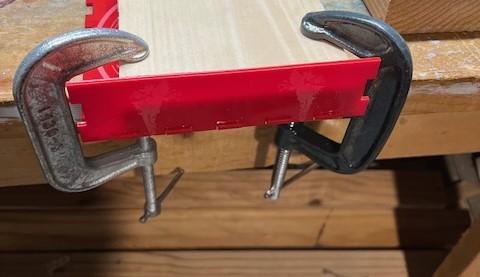
Once you\'ve retrieved your freshly cut parts, actual assembly is simple. Dry fit the pieces to ensure they interlock as intended; the edges may require filing or sanding to get a better fit, but they likely will fit together decently straight out of the cutter.\r\n\r\nUse super glue on the inside of the teeth to hold the box together, using clamps if needed to hold the pieces in place and a block of wood to hold the joints at the correct angles while drying.. Wait for the glue to dry, and once it\'s cured and all four sides are attached, your tray is ready.\r\n\r\nCongratulations, you\'ve completed the project! Optionally, post the finished design to Slack and show it off.
One of the advantages of acrylic sheets over plywood is that they come in a variety of colors, several of which are available to purchase here: https://www.makehaven.org/store/material/acrylic-sheet-12-%C3%97-24.\r\nIf you\'re using a sheet from another source, ensure that it is at minimum 8 inches by 24 inches in size..
Important: When you\'re sending the image to the laser cutter, be sure to set the blue path to \"SKIP\" in the Win32 Vector Print dialogue box. Otherwise the laser will etch over the graphics, leaving you with a huge dark spot on the sheet rather than any details.\r\n\r\nThe following settings are recommended by the main page for the MakeHaven Laser Cutters for acrylic use; the colors of the paths they\'re meant to be assigned to in this project will be appended after each one.\r\n\r\nDeep Raster Engraving: Power 100%, PPI 500, Speed 90% (Red)\r\nVector Engraving: Power 20%, PPI 1000, Speed 4% (Green)\r\nVector Cutting: Power 100%, PPI 1000, Speed 2% (Black)