Associated tools
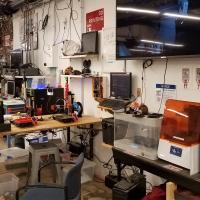
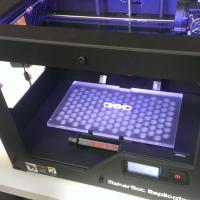
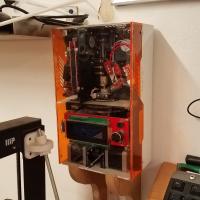


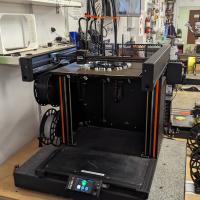

Prusa 3D Printers Badge
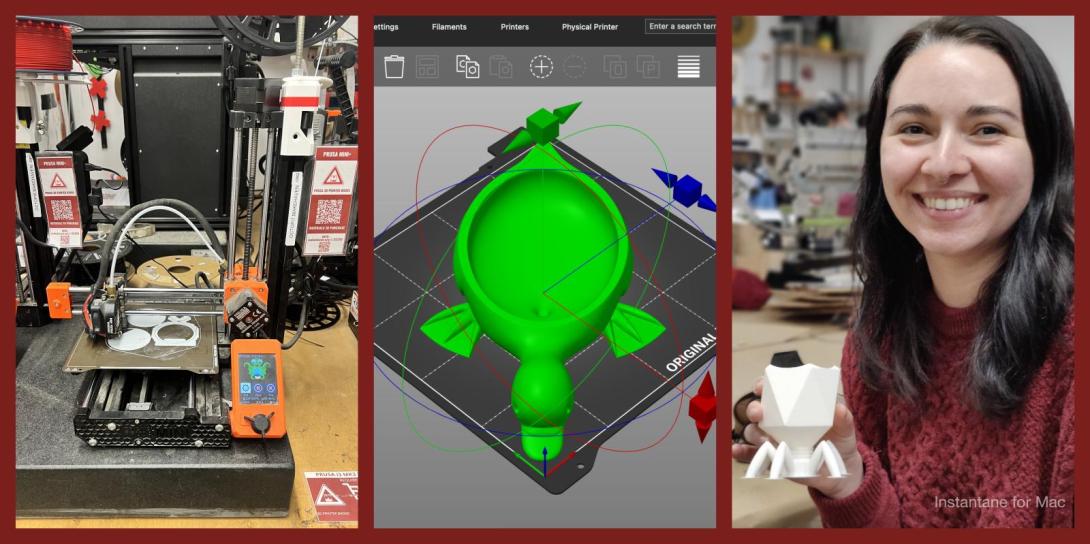
Completing this badge allows you to use the Prusa 3D printers. Additional training is required for use of the Markforged and Form Labs 3D printers.
Badge Checkout Requirement
In person checkout required
Badge Checklist
Complete these items to earn the badge.
- 3D Printer (Generic FDM)
- Video watched, quiz taken, any questions?
- Identify and describe control axes, changing filament, and cleaning print surface
- Cleaning the bed (for the first print of the day)
- Putty knife to scrape away chunks
- Lightly sand with sandpaper (grit #)
- Paper towel with isopropyl
- Changing filament
- Pre-heat machine (215)
- Cut filament near spool (at angle)
- Remove old spool - keep slight tension on filament!
- Filament end should be secured on spool itself, inserted into the printer, or held in your hand - loose filament WILL tangle!
- Remove old filament from extruder,
- Move tension spring lever on top and pull filament from extruder motor
- Adding new filament (only PLA)
- Select desired color from available filaments
- If a new roll is opened, write down the color on the To Purchase Clipboard
- Feed new filament through extruder/tube until desired color is extruded
- On Minis, tension lever must be depressed
- Printing from Octopi
- Go to http://octopi#.makehaven, where # is the number printer you’re using (each printer is labeled on the front)
- If printer state is Offline
- Click the grey Connect button, printer should now say “State: Operational”
- On the lower left hand side are the Folders and Files, create a folder with your name, then upload said folder
- Click the Upload button at the bottom
- Select your STL file, which will load into slicer automatically
- Using the slicer controls: Rotate, scale, remove, duplicate
- After orienting model in slicer, go to General tab
- Change to “After Slicing: Select for Printing”
- On Basic tab:
- Change “Fill Density” to desired percentage (suggested value of 15%)
- Change “Support Type” if supports are required
- Build plate: only supports where model is over buildplate
- Everywhere: adds supports anywhere where there is a 45° or greater overhang
- Make sure extruder temp is 215 degrees and bed is 60
- On Advanced tab:
- Change adhesion from “None” to “Brim” as default, and to “Raft” only if you’re having adhesion problems
- Click “Slice”
- On left side click blue Print button
- Print Process
- Keep note of “Filament (tool 0)”; each member is allocated 30 meters per day. If your prints exceed this, please pay $0.10 per meter at makehaven.org/store, or in the cash box on the wall near the 3D printers
- Put a Name and Date Label (printed from the label machine) on the printer so another user can put your print on the Finished Shelf with this label, or so that if the print fails another user can tell you on Slack
- Removing the print: use a putty knife with the beveled side up at a very shallow angle, to avoid gouging the print surface. Prints are easier to remove once the bed has cooled below 50°C
- If you experience problems that you cannot fix while printing, replace the green check mark with a red X. If able, leave a note on the whiteboard of the problem, and post on Slack
- Cleaning up tool
- Please make sure any bits of filament are thrown in the trash
- Feel free to talk about the following:
- Bed levelling
- Clearing clogged nozzles
Badge
Sunday, September 13, 2026 - 7:46pm
Pronouns
he/him
Ian
Fernandes
Member profiles
Badge
Sunday, September 13, 2026 - 12:31pm
Pronouns
She/Her
Laura
Bretter
Member profiles
Badge
Wednesday, September 9, 2026 - 12:23pm
Pronouns
He/him
Amit
Parikh
Member profiles
Badge
Saturday, September 5, 2026 - 11:23pm
Moses
Newman
Member profiles
Badge
Saturday, August 29, 2026 - 3:40pm
Jason
Vienneau
Member profiles
Badge
Thursday, August 13, 2026 - 5:50pm
Marceau
Moussé
Member profiles
Badge
Wednesday, August 12, 2026 - 7:01pm
Brett
Lynch
Member profiles
Badge
Wednesday, August 12, 2026 - 11:54am
Pronouns
He/Him
Gianmarc
Grazioli
Member profiles
Badge
Tuesday, August 11, 2026 - 11:19pm
Michele
Cooper
Member profiles
Badge
Thursday, July 30, 2026 - 6:47pm
Pronouns
They
Gabe
Yazzie
Member profiles
Badge
Friday, July 24, 2026 - 8:34pm
Joshua
Garlick
Member profiles
Badge
Thursday, July 23, 2026 - 5:29pm
Tian
Xu
Member profiles
Badge
Tuesday, July 7, 2026 - 8:56am
Pronouns
She/her
Vivian
Le
Member profiles
Badge
Sunday, July 5, 2026 - 1:59pm
Carl
Castro
Member profiles
Badge
Tuesday, June 30, 2026 - 1:00am
Rodger
Bryan
Member profiles
Badge
Wednesday, June 24, 2026 - 12:07am
Zaid
Qureshi
Member profiles
Badge
Sunday, June 14, 2026 - 6:18pm
Pronouns
She/her
Christina
Sun
Member profiles
Badge
Wednesday, June 10, 2026 - 6:41pm
Patrick
Cudahy
Member profiles
Badge
Saturday, June 6, 2026 - 6:29pm
Pronouns
He
Ken
McGill
Member profiles
Badge
Tuesday, June 2, 2026 - 4:49pm
Marshina
Curry
Member profiles
Badge
Thursday, May 28, 2026 - 10:58am
Madeeha
Nasir
Member profiles
Badge
Friday, May 22, 2026 - 2:48am
Joseph
Neumann
Member profiles
Badge
Saturday, May 16, 2026 - 6:31pm
Pronouns
She/Her
Zoe
Akwada
Member profiles
Badge
Wednesday, May 13, 2026 - 11:59am
Pronouns
He/Him
Arnoldo
Sandoval
Member profiles
Badge
Tuesday, May 12, 2026 - 2:57pm
Pronouns
He Him
Pierre
Lozon
Member profiles
Badge
Tuesday, May 12, 2026 - 10:50am
Pronouns
He/him
ARTHUR
LAM
Member profiles
Badge
Monday, May 11, 2026 - 2:44pm
Pronouns
He/Him
oliver
sawin
Member profiles
Badge
Thursday, May 7, 2026 - 11:00am
Pronouns
he/him
Daniel
Gibson
Member profiles
Badge
Thursday, April 30, 2026 - 2:14pm
Pronouns
She
Brenda
Hailey
Member profiles
Badge
Sunday, April 19, 2026 - 10:11am
Pronouns
She/Her
Fareena
Alam
Member profiles
Badge
Saturday, April 11, 2026 - 12:56pm
Pronouns
He/Him
Giovanni
Molin
Member profiles
Badge
Friday, April 10, 2026 - 7:10pm
Eric
Hamlin
Member profiles